
How to Get Cricket Match Alerts and Never Miss a Wicket
Missing a wicket alert is often caused by phone settings, not the cricket app itself. With the right notification, battery and lock-screen setup, you can get wicket alerts faster and keep live scores visible on Android, Samsung and iPhone without constantly opening the app.
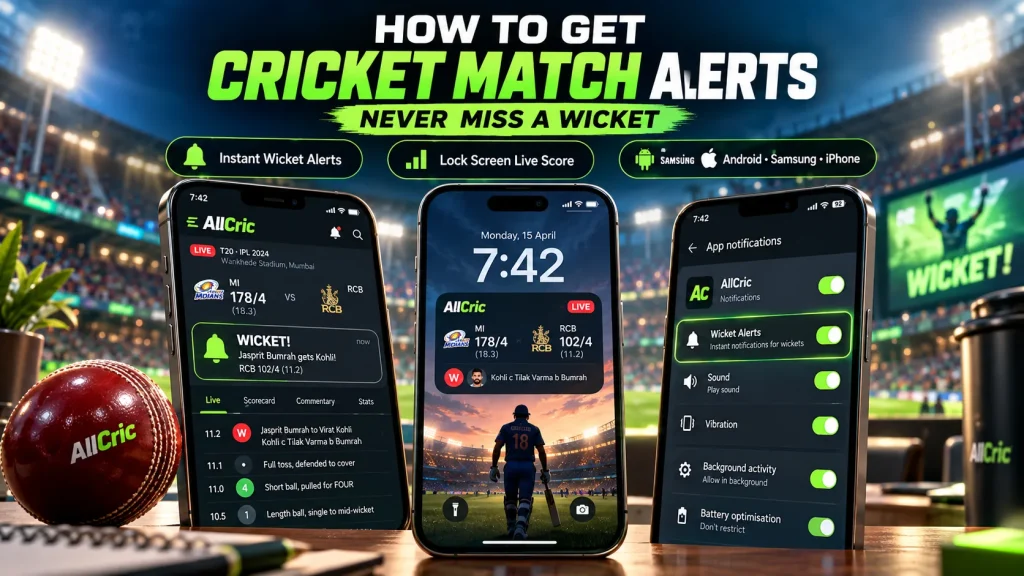
I was stuck in a long meeting during a tight chase. My phone was on the table, face down. When the meeting ended, I checked the score. My team had lost three wickets in two overs, and my phone had not made a single sound.
I blamed the app at first. But the real problem was my phone. It was quietly blocking the app in the background to save battery. Once I fixed that and changed a few other settings, I started getting wicket alerts within seconds, even with my phone locked.
This guide shows you the exact setup I use now. It takes about 10 minutes, and it works on Android, Samsung and iPhone.
Step 1: Choose a Fast Cricket Alert App
Everything starts with the app. If the score is slow, no setting on your phone can fix it.
What to look for in a cricket alert app
Before I keep any cricket app on my phone, I check four things:
- Speed: The score should update right after the ball , not at the end of the over.
- Wicket alerts: You should be able to get an alert when a wicket falls, without getting one for every single run.
- Team follow: You should be able to follow your team so you don’t have to set up every match one by one.
- No ads at the worst moment: A full-screen ad when a wicket falls is the most annoying thing a cricket app can do.
Why I use AllCric
AllCric is built around fast, ball-by-ball live scores, and it covers a lot of cricket. Here is what I find useful during a live match:
- Ball-by-ball commentary, so I can see exactly how the wicket fell.
- Current and required run rate on the score screen. In a chase, I know straight away if a wicket has changed the game.
- Live win probability that moves after every ball. It’s a quick way to see how big a wicket really was.
- Playing XI and toss details before the match starts.
- Wide league coverage, including IPL, BPL, PSL, LPL, BBL, CPL, SA20, county cricket and women’s matches.
AllCric also has AI and fantasy tools. You don’t need any of them for alerts, so feel free to ignore them and just use the live scores.
If you already use Cricbuzz or ESPNcricinfo, that’s fine too. Steps 2 to 4 work the same way with any cricket app.
Step 2: Turn On Wicket Alerts
Allow notifications
The first time you open a cricket app, your phone asks if the app can send you notifications. Tap Allow.
If you tapped “Don’t allow” by mistake, you can fix it:
- Android: Settings > Apps > your cricket app > Notifications > turn it on.
- iPhone: Settings > Notifications > your cricket app > turn on Allow Notifications. Also turn on Lock Screen, Banners and Sounds.
Follow your team and the tournament
Most cricket apps only send match alerts for teams or matches you follow. Open the match or team page and tap the follow button or the bell icon. I follow my national team and the one league I care about most. That way, alerts start automatically for every match, and I never have to remember to set them up.
Choose only the alerts you need
This is where most people go wrong. They turn everything on, get 40 alerts in a T20, and then mute the app completely. Then they miss the one wicket that mattered.
Here is what I keep on:
- Wickets
- Toss
- Milestones (50s, 100s, five-wicket hauls)
- Match result
Here is what I turn off:
- Every boundary
- Every over
- News alerts during the match
Best alert settings for your team and each format
|
Match |
Wickets |
Toss |
Milestones |
Breaks |
Result |
|
Your favourite team |
✅ |
✅ |
✅ |
✅ |
✅ |
|
Other matches |
❌ |
❌ |
❌ |
❌ |
✅ |
|
Test match |
✅ |
✅ |
✅ |
✅ (lunch, tea, stumps) |
✅ |
|
ODI |
✅ |
✅ |
✅ |
✅ (innings break) |
✅ |
|
T20 and leagues |
✅ |
✅ |
✅ |
❌ |
✅ |
The idea is simple: get everything for the team you love, and only the result for everyone else. Tests are long, so break alerts help you plan your day. T20s move fast, so break alerts just add noise.
Give wicket alerts their own sound (Android)
When every app uses the same notification sound, you can’t tell a wicket from a WhatsApp message. On Android, you can give your cricket app its own sound:
- Go to Settings > Apps > your cricket app > Notifications.
- Tap the notification category you want, such as match alerts.
- Tap Sound and pick something you’ll recognise straight away.
Now when I hear that sound, I know it’s cricket before I even look.On iPhone, most apps don’t let you change the alert sound. Instead, follow Step 4 to make sure your cricket alerts always come through.
Step 3: Put the Live Score on Your Lock Screen
Alerts tell you when something happens. A live score on your lock screen lets you check the match with a quick look, without opening any app.
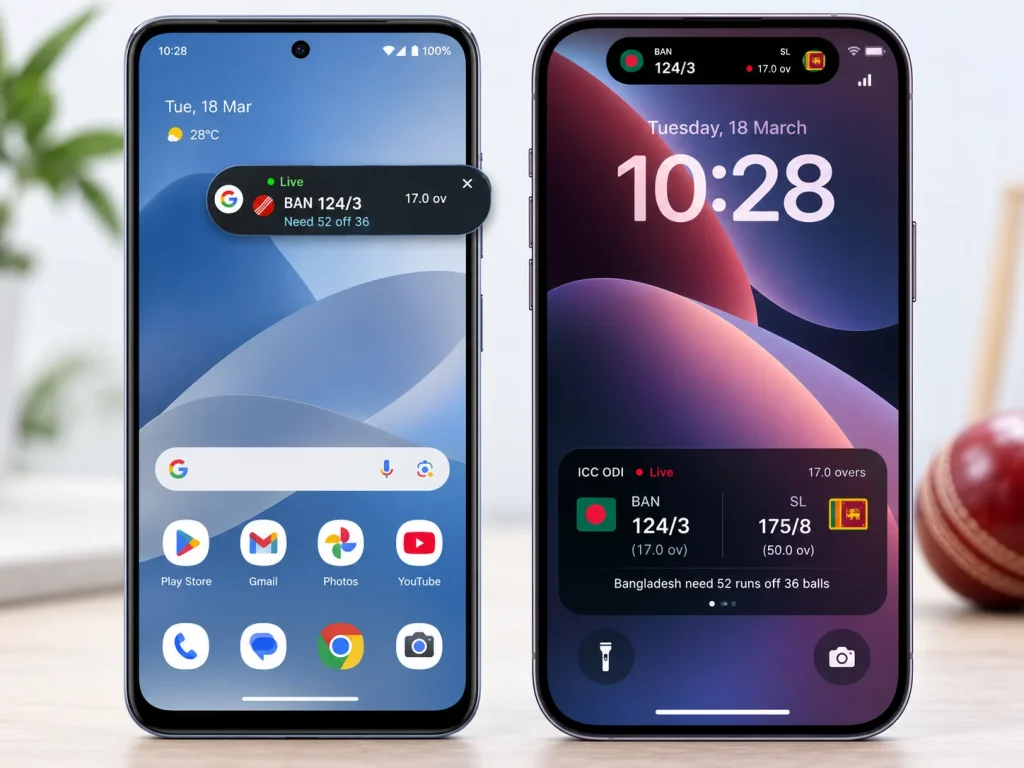
Android: pin the live score with Google
This works on almost any Android phone.
- Open the Google app and search for your team or the match, for example “Bangladesh cricket” or “IPL score”.
- On the live match card, tap Pin live score.
- The first time, Google asks for permission to show over other apps. Tap Open settings, find Google, and turn on Allow display over other apps.
- Go back and tap Pin live score again.
A small score bubble now floats on your screen. You can drag it anywhere, and tap it to see more details.
The best part: tap the bubble and choose Automatically pin future matches, then pick your team. After that, the score pins itself every time your team plays. To remove it, tap the bubble and select Remove.
Samsung Galaxy: show the score on the Now Bar
Newer Galaxy phones have the Now Bar, a small bar at the bottom of the lock screen. It can show live sports scores.
- Open Settings and tap Lock screen and AOD.
- Tap Now bar.
- Under Live notifications, tap Sports from Google and turn it on.
If Google asks you to allow personalised results, allow it so it knows which teams you follow. For this to work, the app’s notifications, lock screen notifications and “Show content on lock screen” all need to be turned on.
iPhone: Live Activities and Dynamic Island
Some cricket apps can show a live score on your iPhone lock screen and in the Dynamic Island. This feature is called Live Activities.
- Go to Settings > Face ID & Passcode and make sure Live Activities is turned on.
- Go to Settings, tap your cricket app, and turn on Live Activities if you see it.
- Open a live match in the app and look for a Live Activity or “follow live” button.
One tip from experience: Live Activities stop after several hours. During a full day of Test cricket, you may need to start it again after lunch.
Step 4: Make Sure Alerts Arrive Instantly
This is the step that fixed my problem. To save battery, phones often stop apps from running in the background. That’s good for battery life, but it’s the main reason wicket alerts arrive late or not at all.
Android: stop battery saver from blocking your cricket app
Go to Settings > Apps > your cricket app > Battery and choose Unrestricted.
Some brands add extra limits:
- Samsung: Settings > Battery > Background usage limits. Add your cricket app to Never sleeping apps.
- Xiaomi, Redmi and POCO: set the app’s battery saver to No restrictions and turn on Autostart.
After I changed this, late alerts stopped completely.
iPhone: let cricket alerts through Focus mode
Go to Settings > Focus, choose the Focus you use (like Do Not Disturb or Work), and add your cricket app to the allowed apps.
If you use Scheduled Summary, keep your cricket app out of it. Otherwise, your wicket alert can arrive late in a bundle with other notifications.
Alerts stopped working? Quick checklist
- Update the app to the latest version.
- Check that Do Not Disturb or Focus mode is off, or that the app is allowed.
- Make sure battery saver didn’t turn on by itself.
- Check you’re still following your team or match.
- Restart your phone.
Alert speed depends on two things: how fast the app gets its data and whether your phone lets the app run in the background. Even the fastest app will feel slow if your battery saver is blocking it. I use AllCric because of its fast ball-by-ball scores and the run rate and win probability on the same screen. Whatever app you pick, finish Step 4, because that’s where most delays come from.
Open your cricket app’s notification settings, turn on wicket alerts, and turn off boundaries, over updates and news. On Android, you can also turn off the app’s other notification categories in your phone settings so only match alerts come through.
On Android, search your match in the Google app and tap Pin live score. On a Samsung Galaxy, turn on Sports from Google in the Now Bar settings. On iPhone, use a cricket app that supports Live Activities and turn them on in Settings.
Most of the time, battery saver is stopping the app in the background. On Android, set the app’s battery use to Unrestricted. On iPhone, allow the app in your Focus modes and keep it out of Scheduled Summary.
Live streams usually run a little behind the real match, so an alert can tell you about a wicket before you see it. When I watch a stream, I pause in-play alerts and keep only the result alert on. You can also turn on Do Not Disturb for the length of the match.
Yes. Many mobile operators offer cricket score alerts by SMS for a small daily or monthly fee. Contact your operator or check their value-added services to see what’s available. It’s slower than an app, but it works on any phone.
Normal notifications use very little battery. A pinned score or a Live Activity uses a bit more because it keeps updating. If your battery is low, turn off the pinned score and keep only the wicket alerts on.